Creating Agreements#
Starting an agreement is a quick first step: add a client and a title, optionally pick a template, then continue straight into the editor to build the document and place fields.
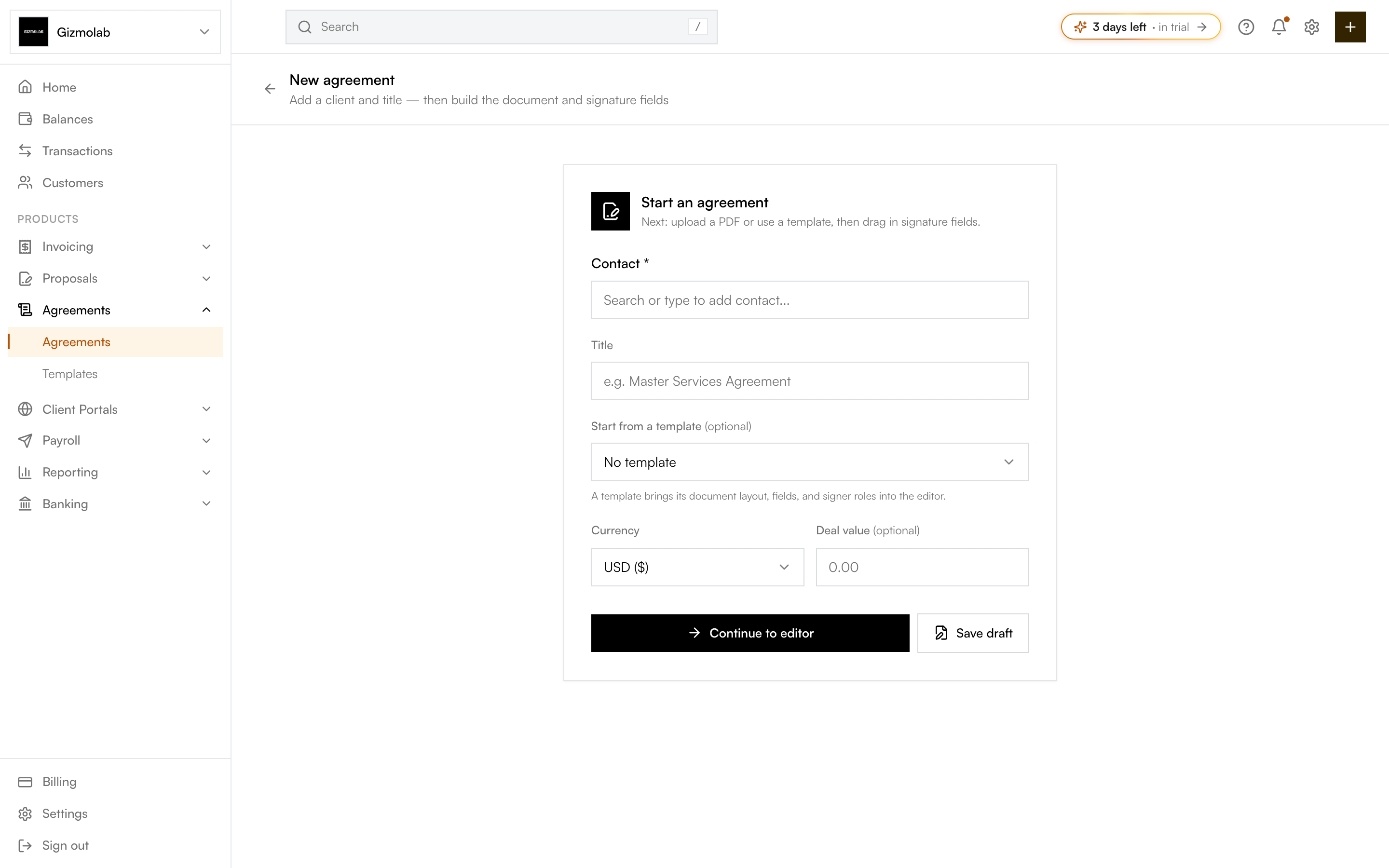
- 1Pick the client contact
- 2Name the agreement
- 3Optional starting template
- 4Currency and deal value
- 5Continue to the field editor
Agreement details#
When you click New agreement, you fill in:
- Contact — Select the client this agreement is for (required). You can search existing contacts or add a new one inline.
- Title — A name for the agreement, e.g. "Master Services Agreement" (required).
- Start from a template — Optional. Choosing a template brings its document layout, fields, and signer roles into the editor. If you have a default template, it is pre-selected.
- Currency — The currency for the deal value (USD or EUR).
- Deal value — Optional. The contract amount, shown on the agreement.
Tip
A template is the fastest way to start—its document, fields, and signer roles are loaded for you, so you only need to fill in the specifics.
Continue to editor vs save draft#
- Continue to editor — Creates the agreement and drops you straight into the field editor, where you upload or generate the document, add signers, place fields, and send.
- Save draft — Creates the agreement and takes you to its detail page. You can open the editor later with Prepare & send.
Both options require a client and a title.
Note
There is no body-text step on this screen—the document itself lives in the editor, where you either upload a PDF or generate one from the template or agreement text.