Proposal Microsites#
A microsite turns a proposal into a premium, branded website—a multi-section page with a hero, your scope and deliverables, pricing, and an accept call-to-action. Refine it by chat in the studio, fine-tune sections in the editor, publish it, and track how the client engages.
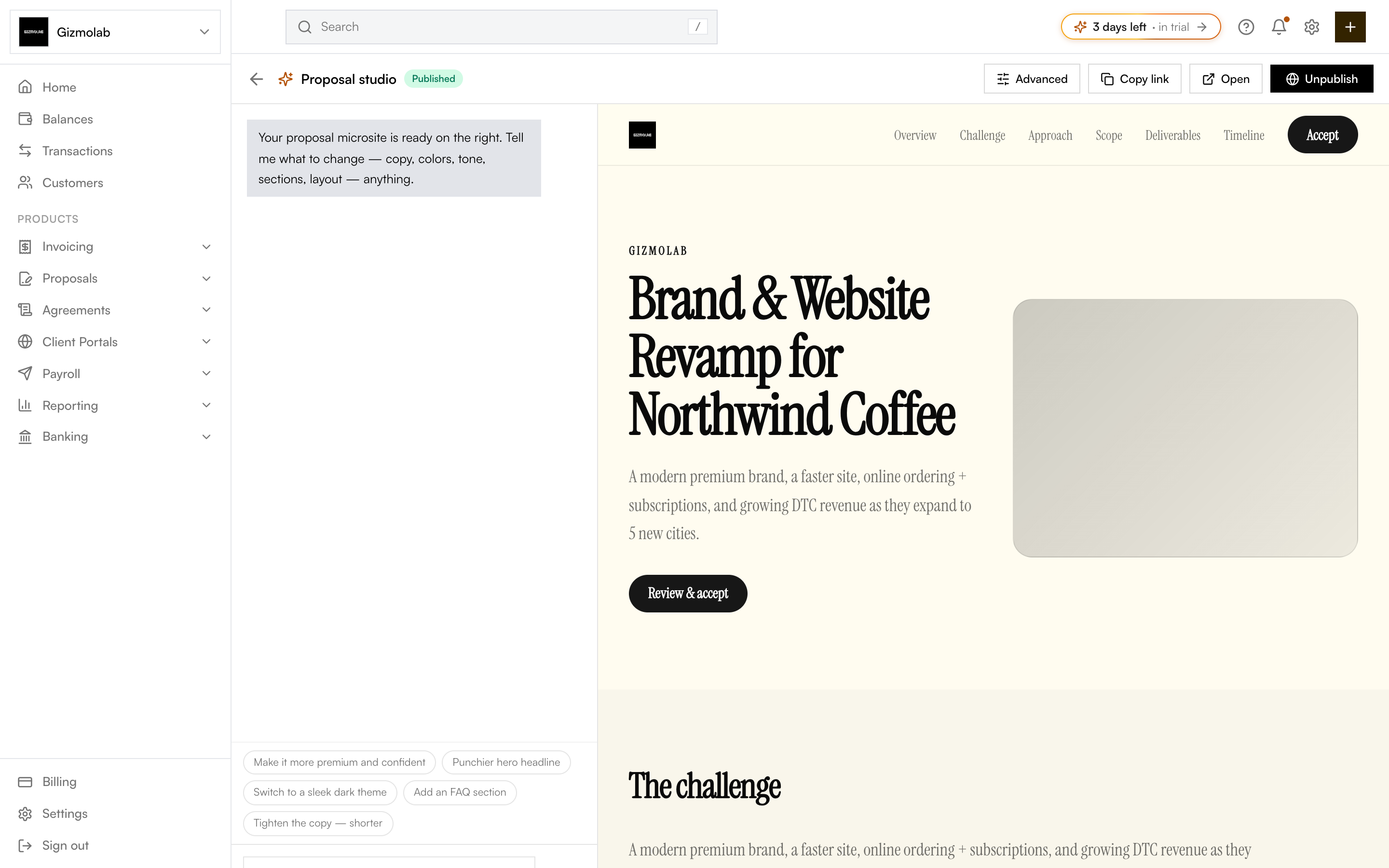
- 1Tell the AI what to change
- 2One-click edit suggestions
- 3Live preview updates instantly
- 4Open the live site
- 5Publish or unpublish
Generating a microsite#
From a proposal detail page, click Generate microsite. Hanko drafts every section from your proposal and brief, then opens the studio. If a microsite already exists, the button changes to Edit microsite.
The studio (refine by chat)#
The studio shows your microsite on the right and a chat panel on the left. Tell the AI what to change—copy, colors, tone, sections, or layout—and the preview updates. Use the suggestion chips for quick edits like making the tone more premium or adding an FAQ section.
When it looks right, click Publish to make the site live. Use Open to view the public site and Copy link to share it.
The editor (fine-tune sections)#
For precise control, open the editor. It gives you a section-by-section view of the microsite.
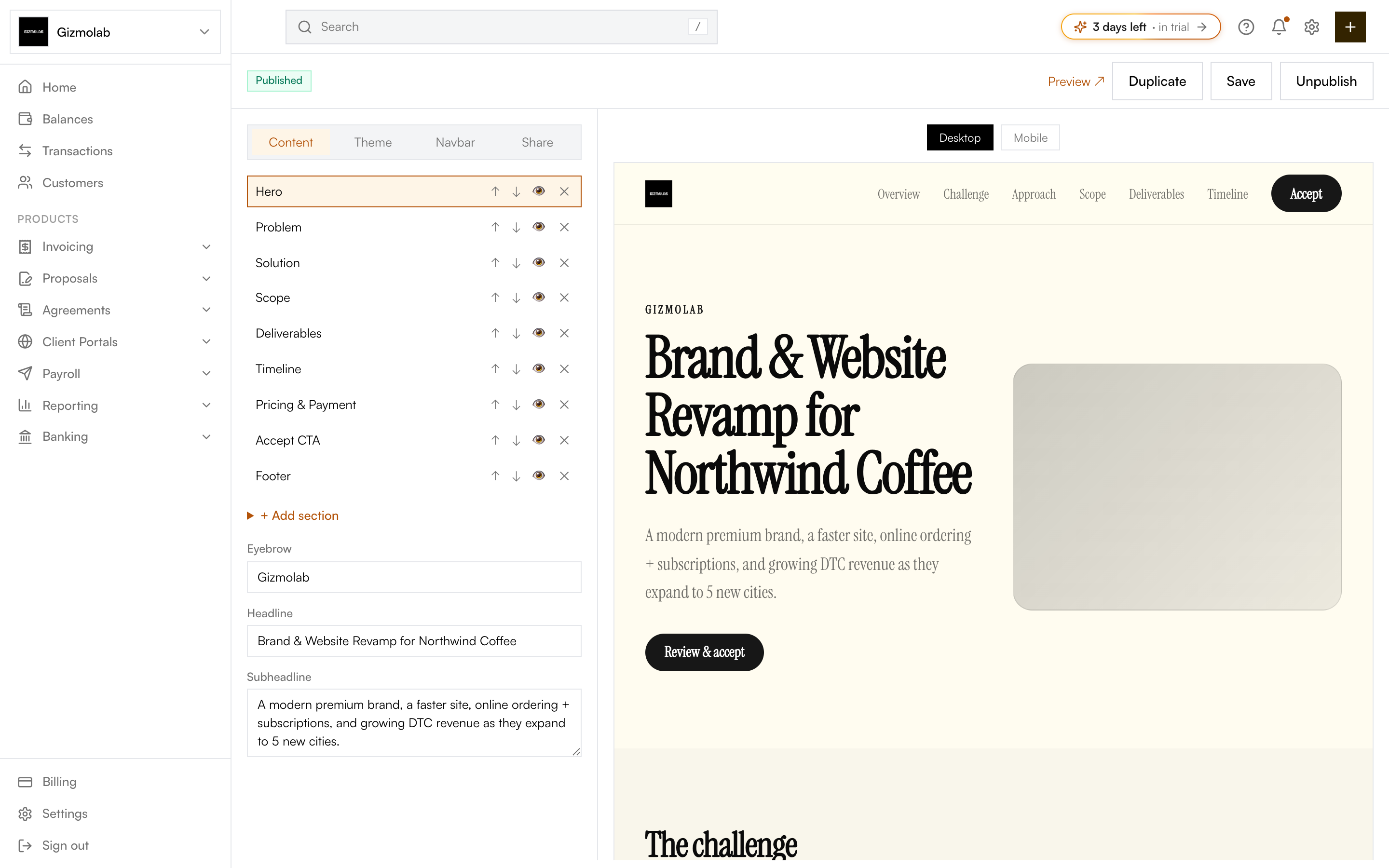
- 1Content theme navbar share tabs
- 2Reorder show or hide sections
- 3Add a section
- 4Edit section text
- 5Preview desktop or mobile
- 6Save and publish
In the editor you can:
- Content — Reorder, show or hide, and add sections (Hero, Problem, Solution, Scope, Deliverables, Timeline, Pricing & Payment, Accept CTA, Footer). Edit each section's text inline.
- Theme — Adjust the look and branding.
- Navbar — Configure the site navigation.
- Share — Manage how the site is shared and published.
Preview in Desktop or Mobile, then Save your changes and Publish.
Custom domains#
Connect your own domain so the microsite lives on your brand. In the editor's share settings, add a domain and follow the DNS instructions Hanko provides to verify it.
Analytics#
Once published, the proposal detail page shows microsite engagement: total views, unique visitors, and CTA clicks—so you know when a client is reviewing your proposal.
Tip
A microsite is a richer alternative to the standard proposal page. The same accept flow applies—clients can review and accept directly on the site.