Exporting#
Every report can be exported to CSV for use in Excel, Google Sheets, or your accounting software.
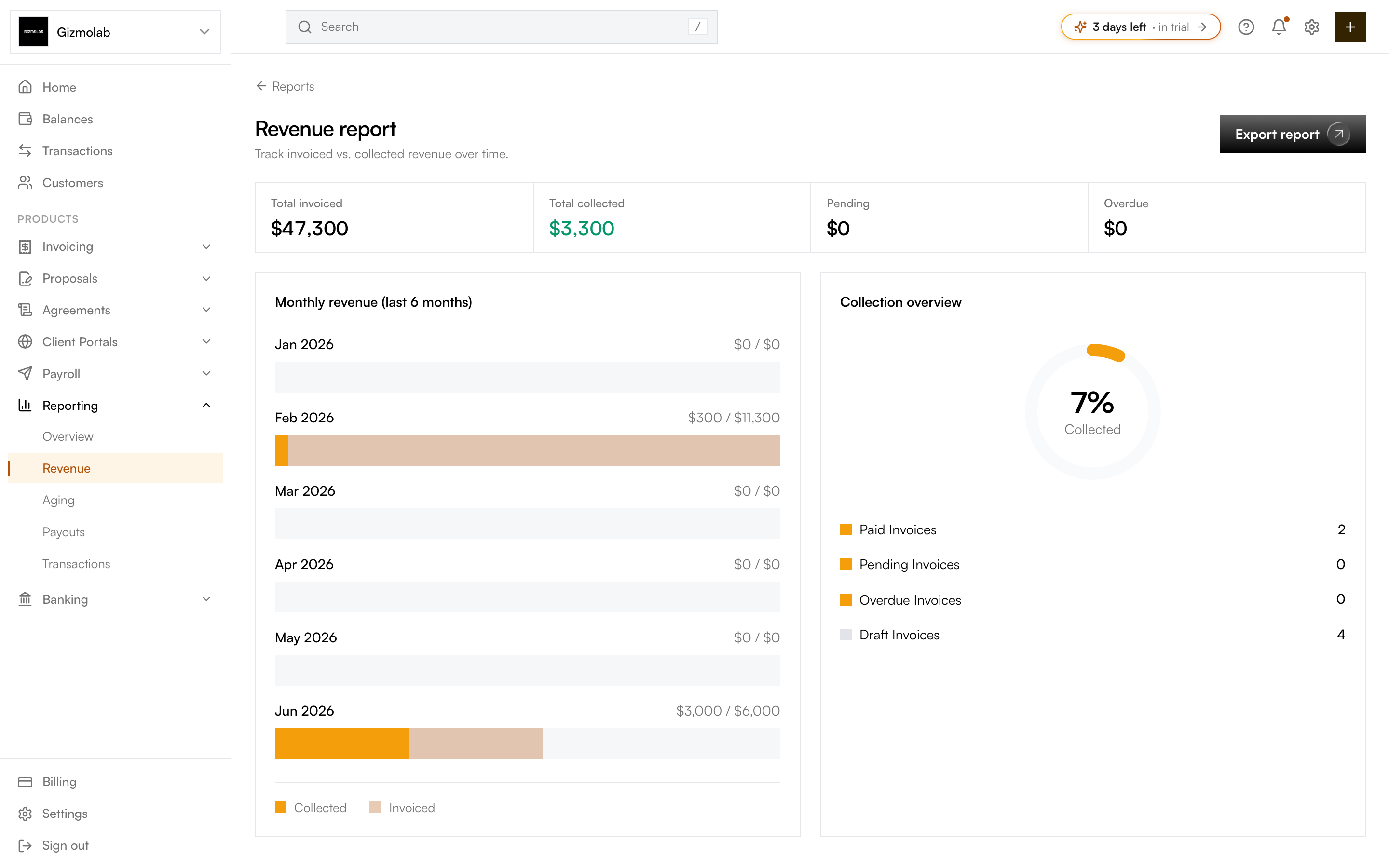
- 1Download this report as CSV
- 2Invoiced collected pending overdue
- 3Invoiced versus collected by month
- 4Share of invoices collected
- 5Revenue sub report selected
Two ways to export#
- Export all data — on the main Reports page, downloads a combined export of every report at once.
- Per-report export — each report page (Revenue, Aging, Transactions, Payouts) has its own Export report button that downloads just that report.
How to export#
Go to Reports and open the report you want, for example Revenue Report.
The page shows totals (invoiced, collected, pending, overdue) plus the monthly breakdown and collection overview, so you can confirm the figures before exporting.
Click Export report (or Export all data from the Reports page). The CSV downloads to your device — open it in a spreadsheet app or import it into your accounting tool.
File format#
Exports are CSV with header rows, so you can map columns into your own systems. Exact columns depend on the report.
Note
Exports reflect the data at the moment you export. Re-export periodically for up-to-date snapshots, and remember that full reporting and export are Pro features.