Team#
Invite teammates and control what they can do from Settings → Team. Team management is available on Business accounts only — Individual accounts are single-user.
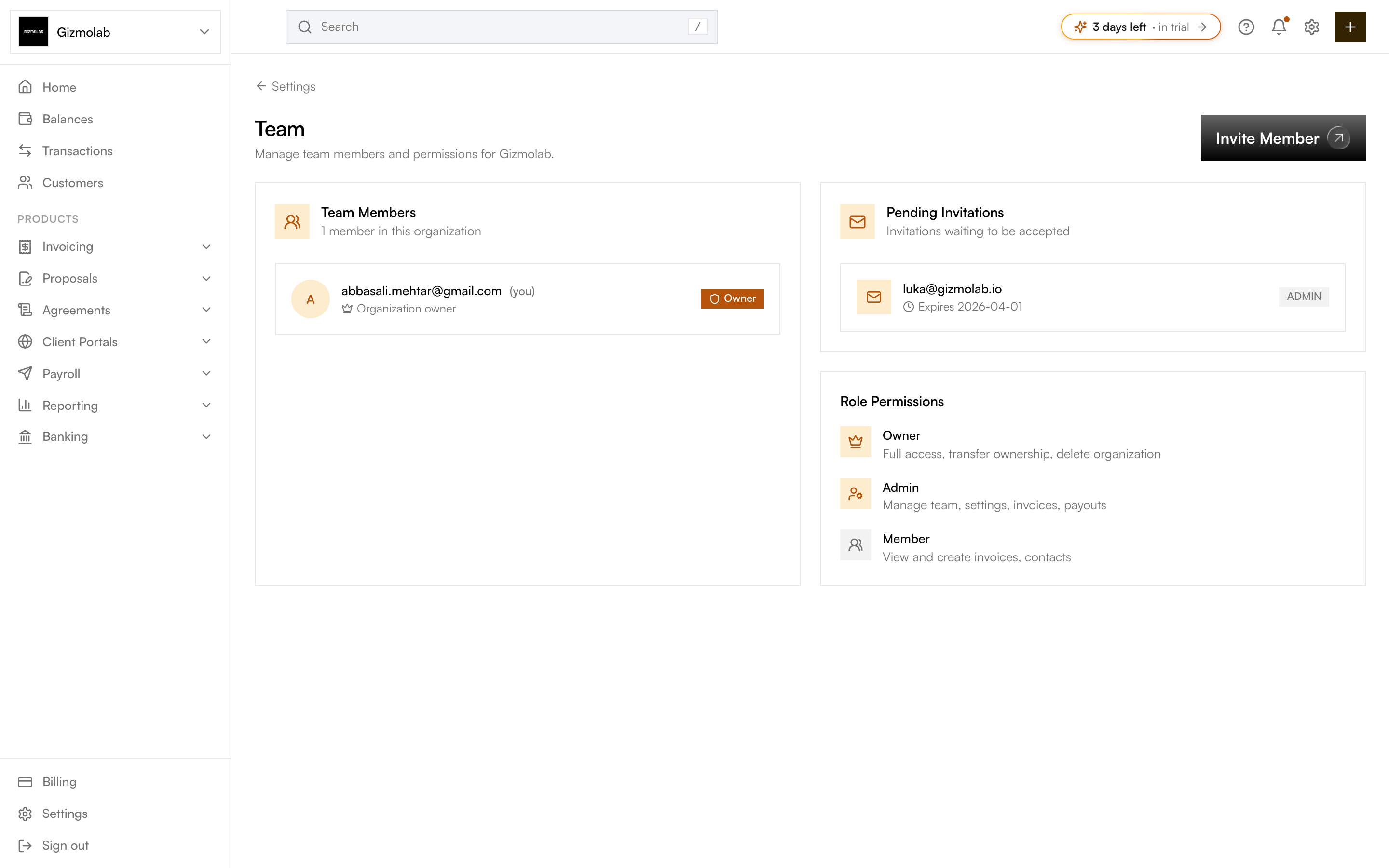
- 1Invite a new member
- 2Current team members
- 3Member role badge
- 4Pending invitations
- 5What each role can do
Inviting teammates#
Owners and admins can invite members. Click Invite Member, then:
Type the colleague's email address.
Pick Member (view and create) or Admin (full access).
Click Send Invitation. They receive an email with instructions to join. The invite shows under Pending Invitations until accepted, with its expiry date.
Roles#
| Role | Permissions |
|---|---|
| Owner | Full access, transfer ownership, delete organization |
| Admin | Manage team, settings, invoices, payouts |
| Member | View and create invoices, contacts |
The Owner is the person who created the organization. When inviting, you can assign Admin or Member — Owner is set automatically.
Note
On the Pro plan you can invite up to 5 team members. Enterprise allows unlimited team invites.
Pending invitations#
Invitations waiting to be accepted appear in the Pending Invitations card with the invited email, role, and expiry date. If an invite expires before it is accepted, send a new one.
Warning
If you do not see the Team page, your organization is set to Individual. Switch the account type to Business in Organization Settings to enable team features.