Flex Routes#
Flex Routes let you accept fiat and crypto on invoices while you receive crypto (e.g. USDC). They are powered by Bridge.xyz and require a one-time verification before routes can be provisioned.
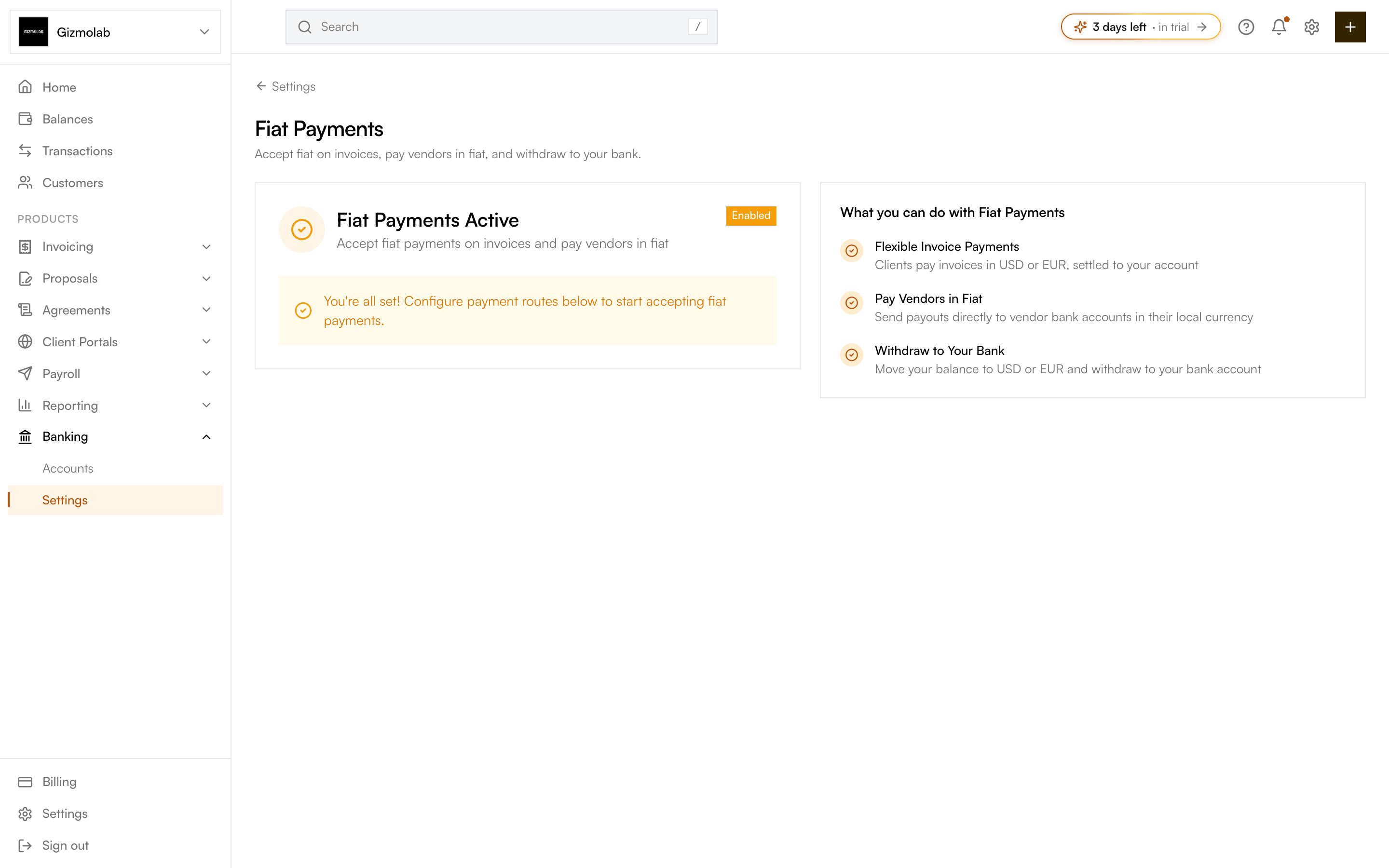
- 1Fiat Payments settings
- 2Verification status card
- 3Enabled once approved
- 4Configure routes here
- 5What fiat unlocks
- 6Banking section in nav
What are Flex Routes?#
- Virtual accounts — Customers pay in fiat (e.g. a USD or EUR bank transfer). Bridge converts the deposit and settles crypto to your wallet.
- Liquidation addresses — Customers pay in crypto (e.g. USDC on a supported chain). Funds forward to your configured destination.
Once set up, you select a payment route when creating an invoice so the customer sees the right instructions (bank details or crypto address).
Prerequisites#
- A Hanko organization.
- Bridge.xyz verification completed for the org. Hanko runs KYC for individual accounts and KYB for business accounts.
Note
Fiat Virtual Accounts is a Pro feature. If your plan does not include it, the Fiat settings page shows a paywall prompt.
Setup steps#
Go to Settings → Fiat. The page shows a verification status card and a summary of what fiat unlocks: flexible invoice payments, paying vendors in fiat, and withdrawing to your bank.
Start verification from the status card. You complete Bridge’s KYC (individual) or KYB (business) checks. When Bridge approves you, the org is marked fiat enabled and the card shows it is active.
After approval, provision your default routes. Hanko creates the virtual accounts and liquidation addresses for you against your Bridge customer record. Provisioning requires verification to be approved first — it is blocked until then.
When creating an invoice, choose a payment route and select the virtual account or liquidation address you want. The invoice shows the correct payment instructions to the customer.
Tip
You can manage the resulting virtual US / EUR accounts and off-ramp destinations under Banking → Bank accounts. See Bank accounts.