Agreement Templates#
Templates are reusable contract bodies you can apply when drafting a new agreement. Each template can carry its own document layout, pre-placed fields, and signer roles—so a recurring contract goes out in seconds.
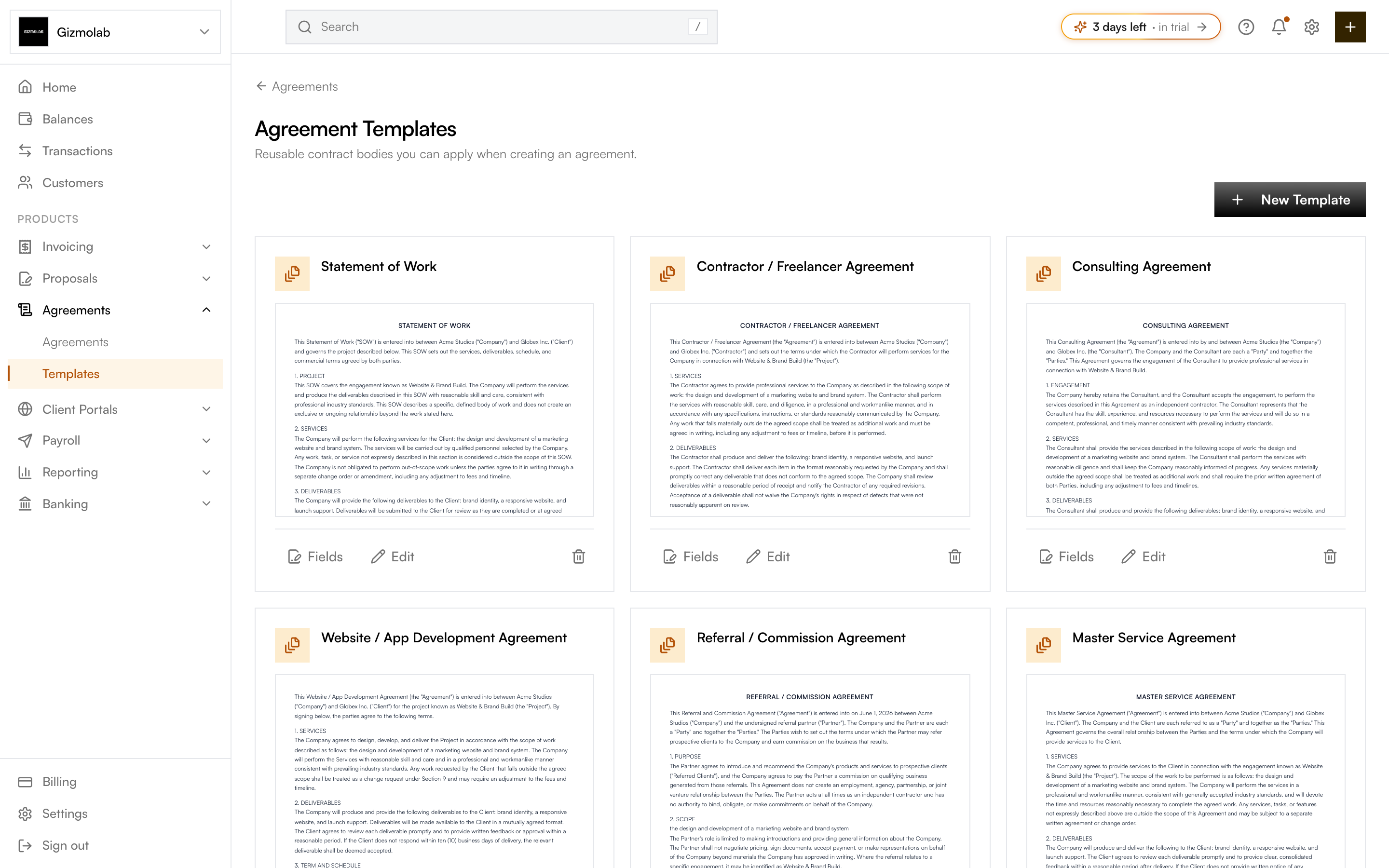
- 1Create a new template
- 2Prebuilt system templates
- 3Preview the full contract
- 4Place fields on the template
- 5Edit the template body
Built-in templates#
The first time you open Templates, ten default system templates are seeded for you—common contract types like Statement of Work, Consulting Agreement, and Master Service Agreement. You can use them as-is, edit them, or add your own.
Creating and editing a template#
Click New Template (or Edit on a card) to open the editor dialog:
- Name — A label for the template, e.g. "Standard Services Agreement".
- Body text — The contract text. Use placeholders that get filled in when the template is applied:
{{client_name}},{{company_name}},{{scope}},{{payment_terms}}, and{{date}}. - Set as default — Pre-selects this template when drafting a new agreement. Setting a new default clears the flag on the others.
Each card also has a Preview action that shows the full contract with example details filled in.
Tip
Mark your most-used contract as the default so it is pre-selected on the New agreement screen.
Adding fields to a template#
Click Fields on a template card to open it in the same editor used for agreements. There you can place signature and data fields and define signer roles on the template's document. When this template is later applied to an agreement, those fields and roles come along automatically.
Note
Editing or deleting a template does not affect agreements already created from it—existing agreements keep their own copy of the document and fields.
Learn how fields and signing work in the Fields & Signing guide.