Executing Payouts#
Once your payout has recipients and amounts, connect the funding wallet, choose an execution mode, complete any required token approval, and execute. The app blocks execution if the token or gas balance is insufficient.
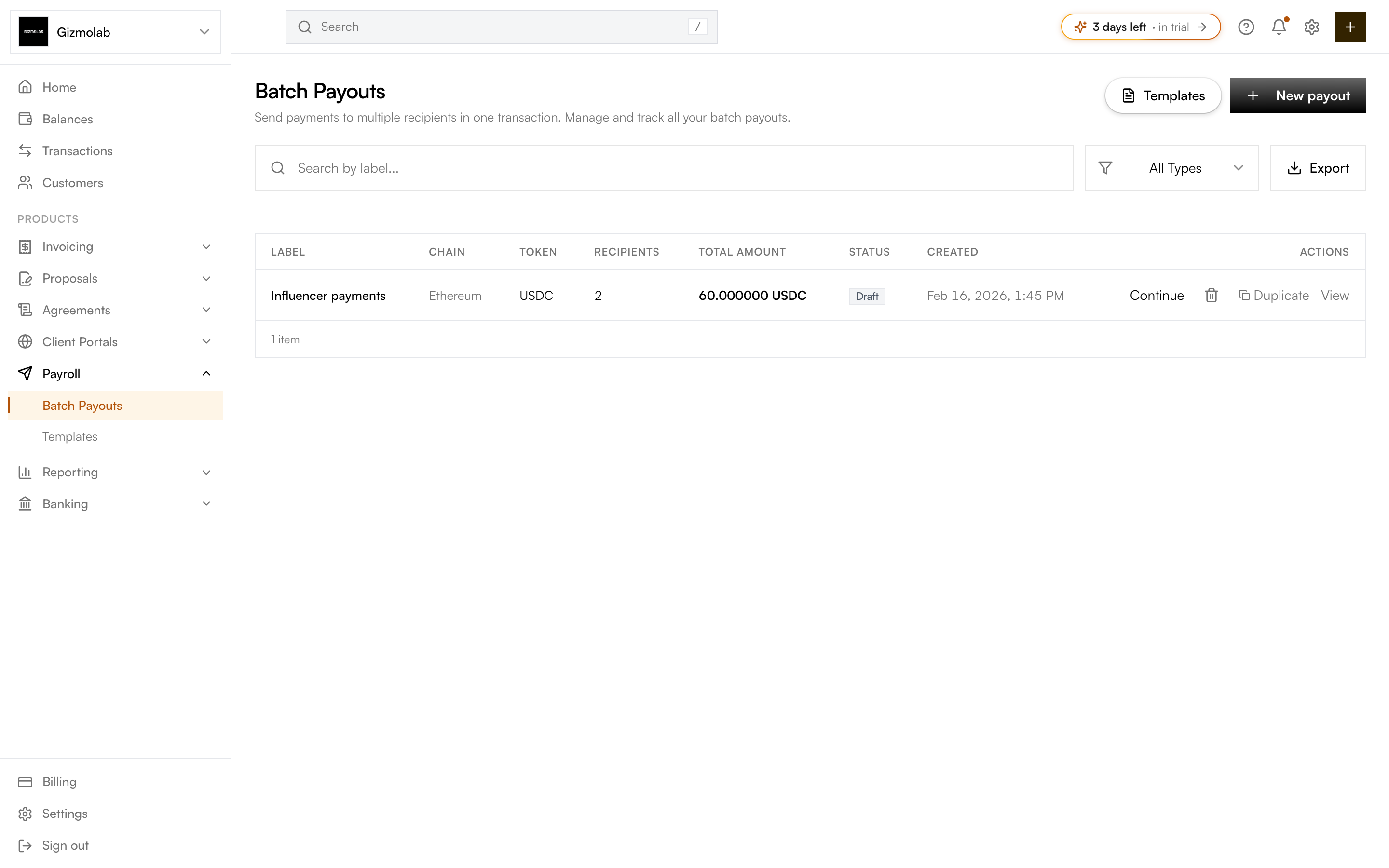
- 1Start a new payout
- 2Open payout templates
- 3Status of each batch
- 4Continue, duplicate, or view
Prerequisites#
- The batch has a label and at least one recipient with a positive amount.
- You picked the correct chain and token.
- A funding wallet is chosen and connected. Individual mode also requires a Dynamic embedded EVM wallet with enough ETH for gas.
Execution modes#
- Batch transaction uses Gaslite to distribute every payment inside one network transaction. It has one transaction hash and is normally the lower-cost option.
- Individual transactions uses the Dynamic embedded wallet to submit one direct token transfer per creator. Every payment has its own transaction hash and status. This mode supports Ethereum and Base USDC/USDT.
Token approval (ERC-20)#
For ERC-20 tokens like USDC:
Click Step 1: Approve and sign the approval in your wallet. Batch mode approves Gaslite. Individual mode needs no token approval when the embedded wallet holds the stablecoins. If a Safe holds them, connect the Safe through WalletConnect and approve the embedded wallet for the exact creator total.
In batch mode, click Execute Payout and confirm the Gaslite transaction. In individual mode, click Start payouts. A progress modal stays open while the embedded wallet submits and confirms every creator transfer. Keep the page open until the run finishes.
Native tokens like ETH need no approval — just Execute Payout.
Note
Individual mode is available only for USDC and USDT. The embedded wallet pays gas in ETH, and the app checks that its native balance covers the estimate plus a 10% safety buffer. There is no stablecoin gas charge or separate fee transaction.
Balance check#
The funding card compares your wallet balance to the total in real time:
- Balance is enough — You can execute (after approval if needed).
- Balance is short — An Insufficient balance warning appears, the balance turns red, and the button is disabled. Add funds or lower the total.
Warning
Double-check the total and recipients before executing. Once the transaction confirms on-chain, it cannot be undone.
Statuses#
Each batch moves through statuses shown in the list and on the detail page:
- Draft — Saved but not yet executed; click Continue to keep editing.
- Processing — One batch transaction or one or more individual transactions are awaiting confirmation.
- Completed — Every recipient payment confirmed on-chain.
- Failed — The batch transaction failed, or one or more individual recipient payments remained failed after in-flight work finished.
Each creator transfer is tracked as queued, submitting, submitted, paid, or failed. If a run is interrupted, reopen the payout and resume; already confirmed creators are not sent again. A transaction that may have been broadcast without a stored hash is held for manual review instead of being retried automatically.
After execution#
When execution finishes, the payout flips to Completed. Open it to see its transaction information and recipient breakdown. Batch mode shows one explorer link; individual mode shows a link and actual fee for each recipient. From a completed payout you can Duplicate it for a fresh run or Save as template for recurring use.
Tip
Use the search and status filter on the Payouts list to find past runs, or Export them for your records.