Proposal Templates#
Templates are ready-made proposal designs. Each one builds a complete, branded proposal instantly—no AI needed—so you can skip a blank page and just add your scope and pricing.
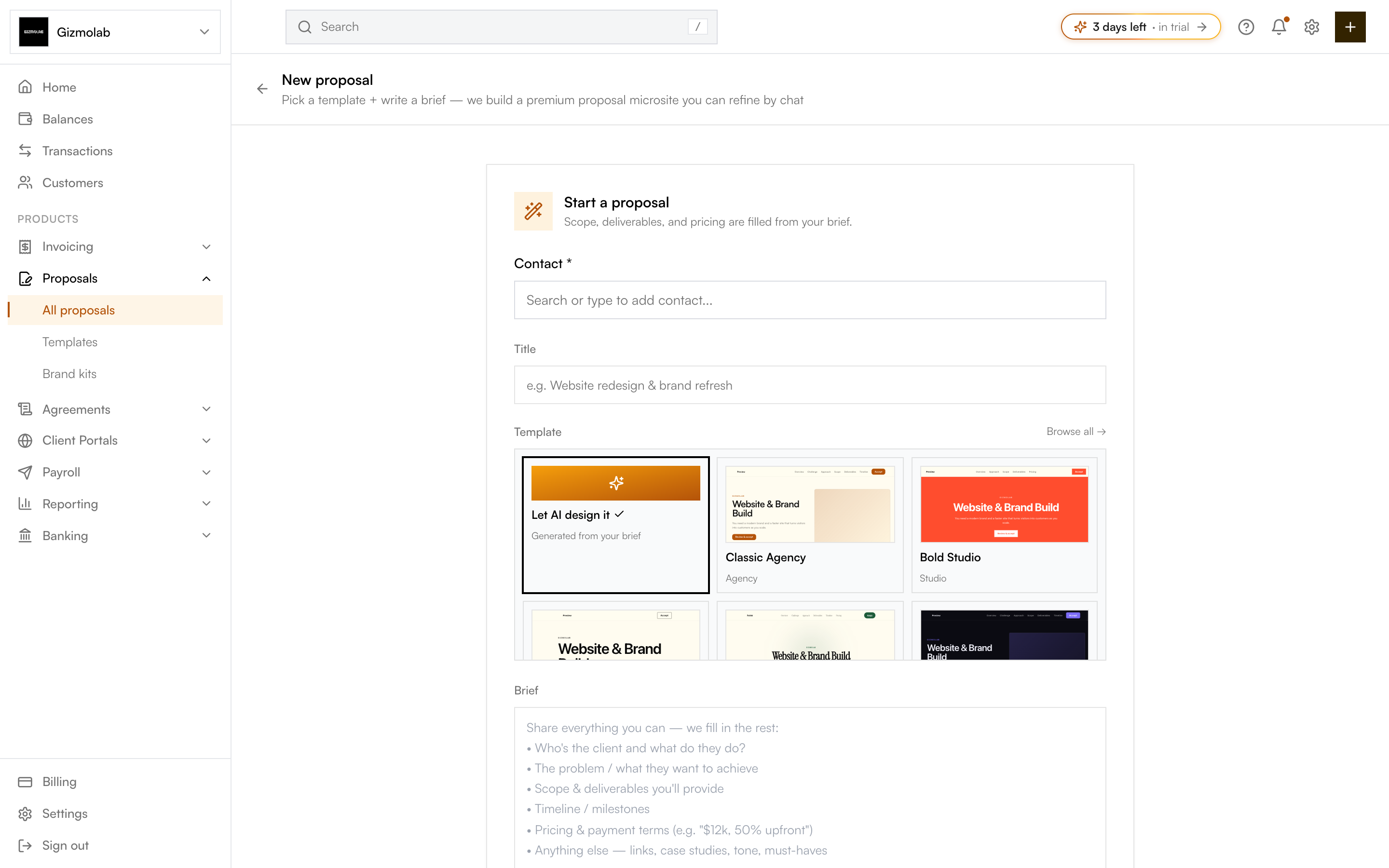
- 1Template section
- 2Browse all templates
- 3Let AI design it option
- 4Pick a ready design
Choosing a template#
When you start a new proposal, the Template picker shows:
- Let AI design it — Skip a fixed design and let Hanko generate the proposal from your brief.
- Ready-made designs — Pick a styled template (e.g. an agency or studio layout). A live preview shows how each looks.
Selecting a template highlights it with a check. Your brief still fills in the scope, deliverables, and pricing—the template controls the look.
Browse all templates#
Click Browse all to open the full template gallery. There you can preview every design at full size and choose one to start from.
Set an org default#
In the template gallery, owners and admins can set one template as the org default. New proposals pre-select that template automatically, so your team starts from a consistent design every time.
Tip
You can always override the default per proposal—just pick a different template (or Let AI design it) when you start.