Payout Templates#
Templates save a recipient list and payout configuration so you can generate recurring batches — like monthly salaries — without rebuilding them each time. A template stores the chain, token, and recipients, but never executes on its own.
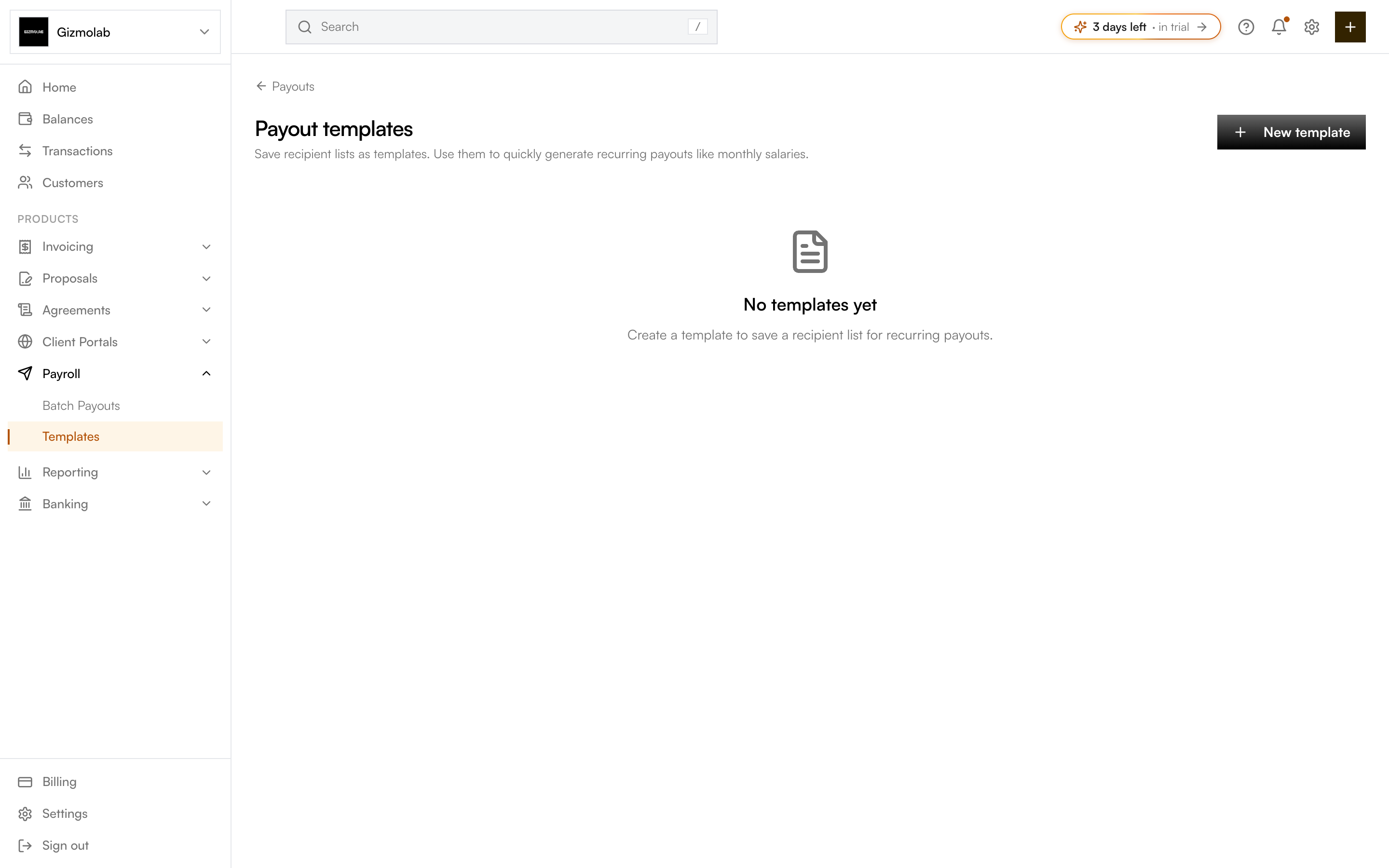
- 1Templates lives under Payroll
- 2Back to batch payouts
- 3Create a new template
- 4Empty until you add one
Create a template#
Go to Payroll → Templates and click New template (or open Templates from the Batch Payouts header).
Give the template a name (e.g. Monthly Salaries, Vendor Payments) and choose the chain and token.
Add recipients by hand, Add by Contact, or Import CSV — the same recipient tools as the payout form. The footer shows the recipient count and total.
Click Save Template. A name and at least one recipient with an address and amount are required.
Save an existing payout as a template#
On any executed payout's detail page, click Save as template. This pre-fills a new template from that batch's chain, token, and recipients so you can reuse it going forward.
Use a template#
From Templates, run a template to open the create-payout form pre-filled with its chain, token, and recipients. Add a label, adjust amounts if needed, and execute as a normal batch payout.
Tip
Templates are perfect for payroll: set up your team once, then start each month's run from the template and only tweak amounts that changed.
Manage templates#
The templates list shows each template's name, chain, token, recipient count, total amount, and last updated date. Use the row actions to edit or delete a template. Editing updates the saved recipient list and configuration.