Billing & Plans#
Hanko billing is per organization. Each org carries its own subscription, and only org owners and admins can change it. Open it from Settings → Billing & plan.
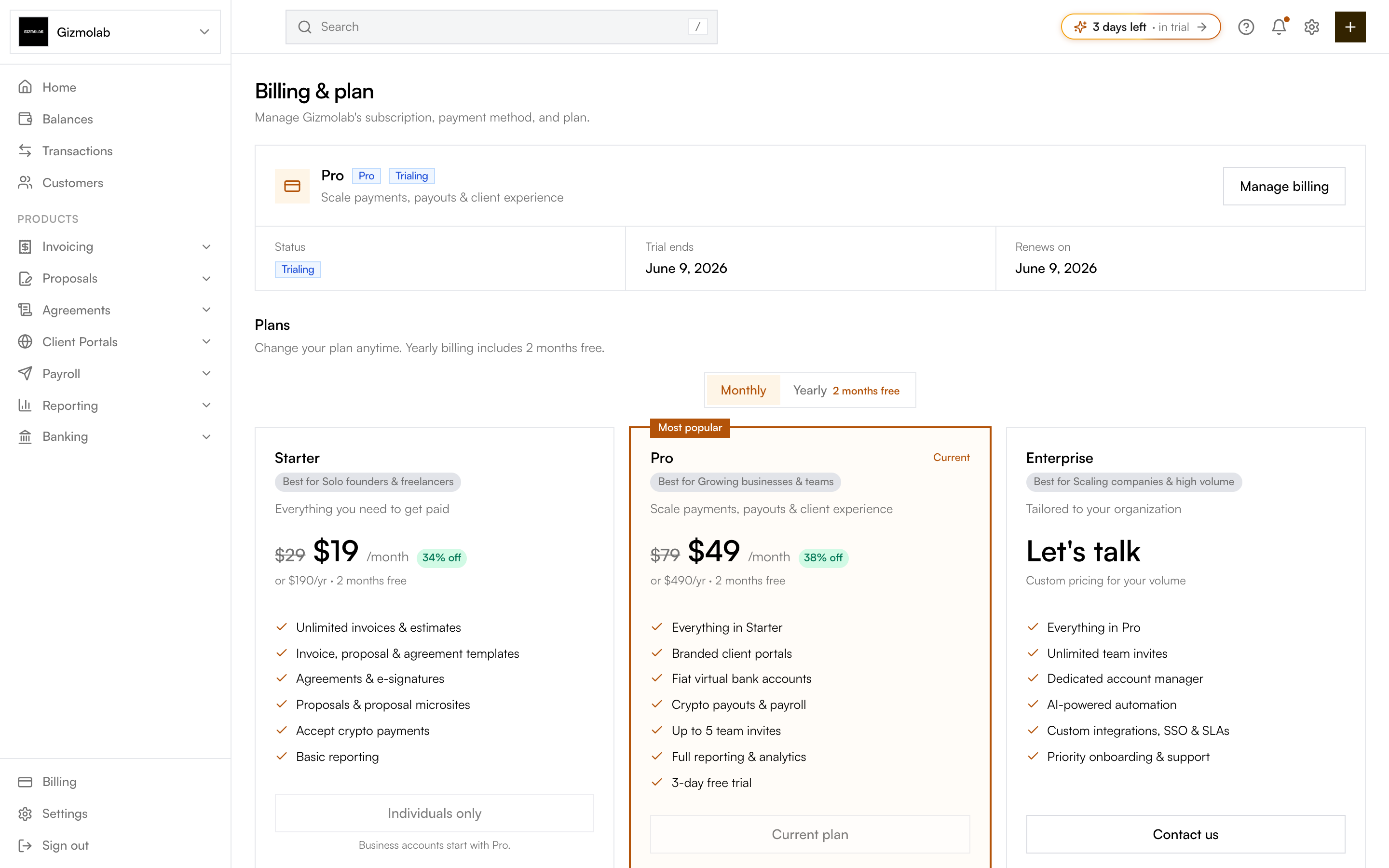
- 1Days left in your trial
- 2Opens the Stripe billing portal
- 3Switch monthly or yearly billing
- 4Pro is the recommended plan
- 5Starter is for individual accounts
Plans#
There is no free plan — an org needs an active subscription to create and send. The app stays preview-only until you choose a plan.
- Starter — $19/mo or $190/yr. Individuals only. Unlimited invoices and estimates, invoice/proposal/agreement templates, agreements and e-signatures, proposals and proposal microsites, crypto payments, and basic reporting.
- Pro — $49/mo or $490/yr, with a 3-day free trial. Everything in Starter plus branded client portals, fiat virtual bank accounts, crypto payouts and payroll, up to 5 team invites, and full reporting and analytics. Business accounts start here.
- Enterprise — custom pricing, contact sales. Everything in Pro plus unlimited team invites, AI-powered automation, custom integrations, SSO and SLAs, and a dedicated account manager.
Tip
Yearly billing includes 2 months free (you pay for 10 months). Crypto payments are available on every plan.
Choosing or changing a plan#
Use the Monthly / Yearly toggle to compare prices, then pick a plan from the grid:
Go to Settings → Billing & plan for the org. Owners and admins see plan actions; everyone else sees a preview.
Click the button under the plan you want. Starter shows Individuals only for business accounts — businesses choose Pro or Enterprise. Enterprise shows Contact us instead of checkout.
You are redirected to Stripe-hosted checkout. Pro collects a payment method during the 3-day trial so billing starts automatically when the trial ends.
Back on the billing page, the current-plan card updates to show your plan, Status (Trialing, Active, Past due), and the Renews on date once Stripe confirms.
You can change your plan anytime from the same grid.
Manage billing#
The Manage billing button opens the Stripe customer portal, where admins can update the payment method, switch plans, and cancel. All changes flow back to Hanko automatically.
Trials and what cancelling does#
- Trial — Pro includes a 3-day trial. The billing card shows Trial ends with the date. Billing begins automatically when the trial ends unless you cancel first.
- Cancelling — When you cancel, the org keeps access until the end of the current period. The card switches to "Cancels on <date>"; after that date the app locks until you choose a plan again. You can resume anytime from Manage billing.
- Past due — If a payment fails, the status shows Past due. Update your payment method from Manage billing to keep the plan active.
Note
Enterprise access can also be enabled directly by a Hanko admin for your organization — in that case the billing card notes that Enterprise access is enabled.