Proposals Overview#
Proposals let you pitch a client with branded scope and pricing, share a link, capture their acceptance, and then turn the deal into an agreement or invoice—without leaving Hanko.
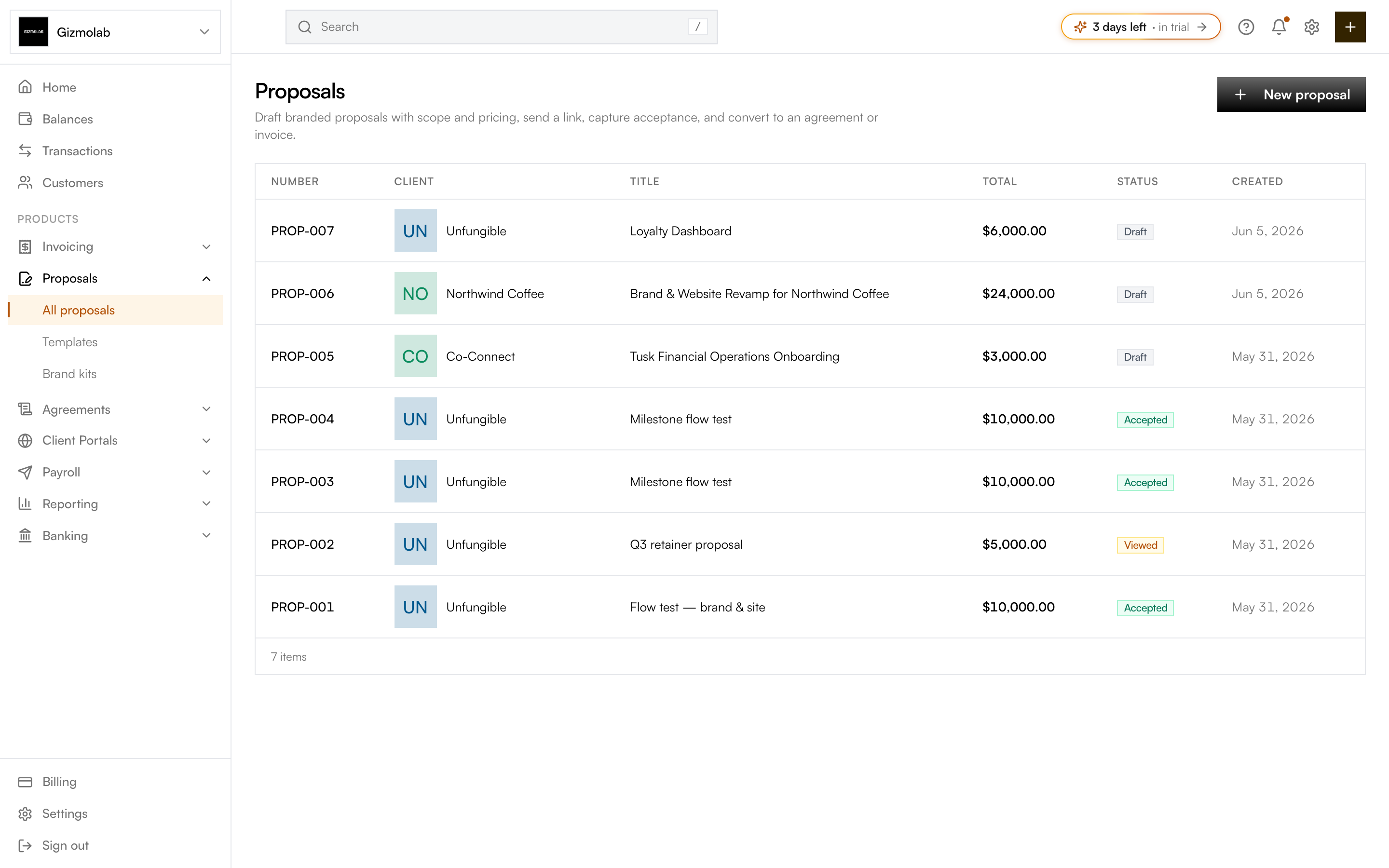
- 1Click New proposal
- 2Click a row to open
- 3Proposal total
- 4Proposal status
The proposals list#
Every proposal you create appears here, newest first. Each row shows:
- Number — A unique identifier (e.g. PROP-001).
- Client — The contact the proposal is for.
- Title — What the proposal covers.
- Total — The proposal amount in its currency.
- Status — Where the proposal is in its lifecycle (Draft, Sent, Viewed, Accepted, Rejected).
Click any row to open the proposal detail page.
Status lifecycle#
A proposal moves through these states:
- Draft — Created but not yet sent.
- Sent — Shared with the client by link.
- Viewed — Opened by the client.
- Accepted / Rejected — The client made a decision.
How proposals fit together#
- Contacts — A proposal is addressed to a client contact. Add contacts under Customers first if needed.
- Acceptance — When a client accepts, Hanko records who accepted, when, and from which IP.
- Convert — Turn an accepted proposal into an agreement to sign or an invoice to bill. Line items and pricing carry over.
Tip
Set a payment schedule on a proposal to bill in milestones—each milestone can auto-create and auto-send its invoice on acceptance.
To create one, see Creating proposals.