Brand Kits#
A brand kit is a saved set of branding you can reuse across proposal microsites: logo, colors, font, and button style. Pick a kit when generating a microsite, or fall back to your company branding by default. Manage them under Settings → Brand kits.
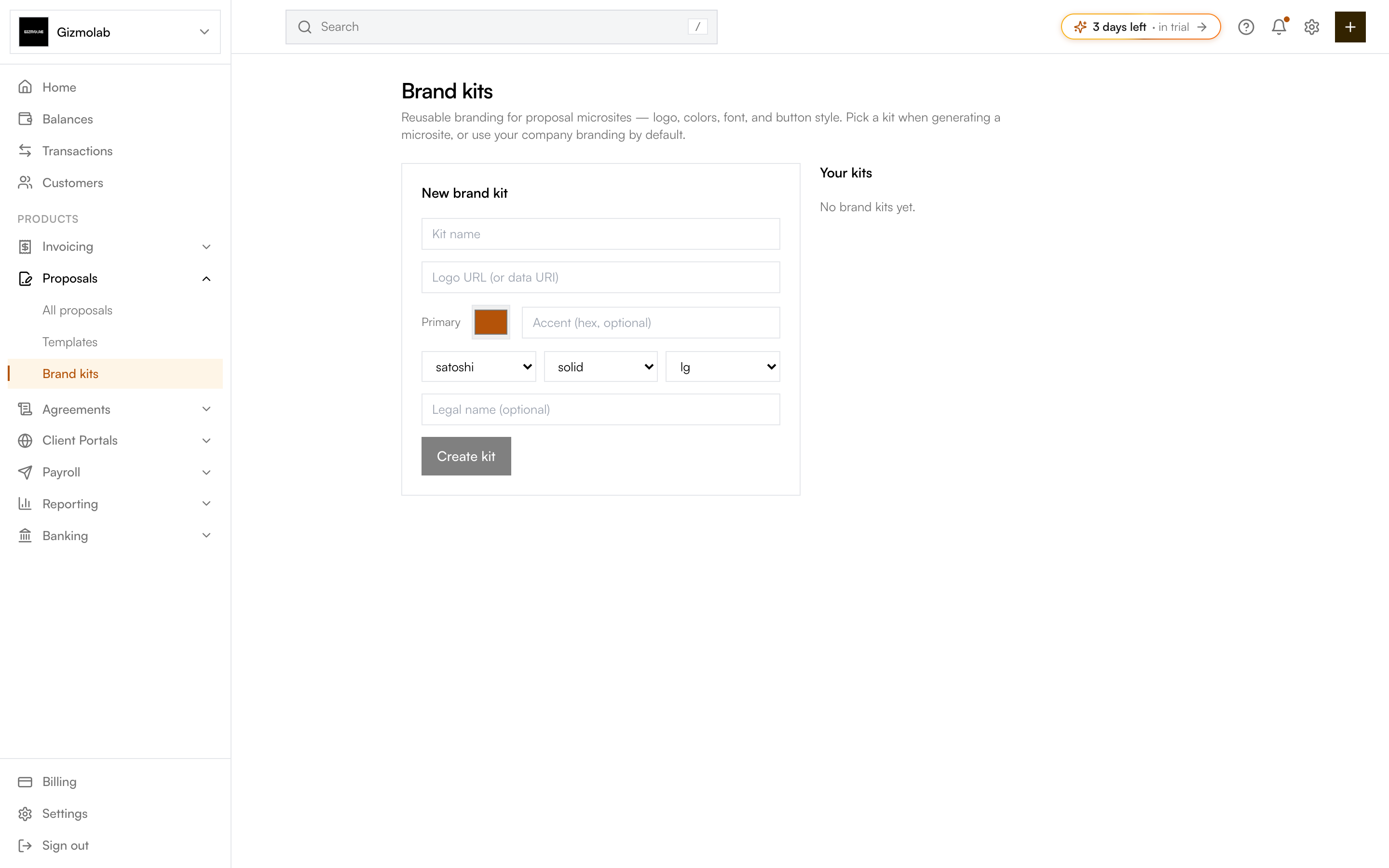
- 1Build a new brand kit
- 2Name this kit
- 3Pick the primary color
- 4Font button style and radius
- 5Save the kit
- 6Your saved kits
Creating a brand kit#
Give the kit a recognizable name, like "Client A" or "Dark theme".
Paste a Logo URL or data URI. Optional.
Choose a Primary color with the swatch, and optionally an Accent hex value.
Select a font family, button style, and border radius. Add an optional legal name to show in microsite footers.
Click Create kit. It appears under Your kits and is ready to use.
Using and removing kits#
Saved kits show their name, color, font, and button style under Your kits. When you generate a proposal microsite, choose a kit to apply its branding. To remove a kit, click Delete next to it.
Note
Brand kits apply to proposal microsites. If you do not pick a kit, microsites use your company branding by default.