Onboarding#
When you first sign in, Hanko runs a short questionnaire to tailor the app. You first choose an account type, then answer a few branching questions. Every step can be skipped, and your answers save as you go — so you can leave and pick up where you left off.
- 1Finish setup resume pill
- 2Navigate after onboarding
- 3Start working once setup is done
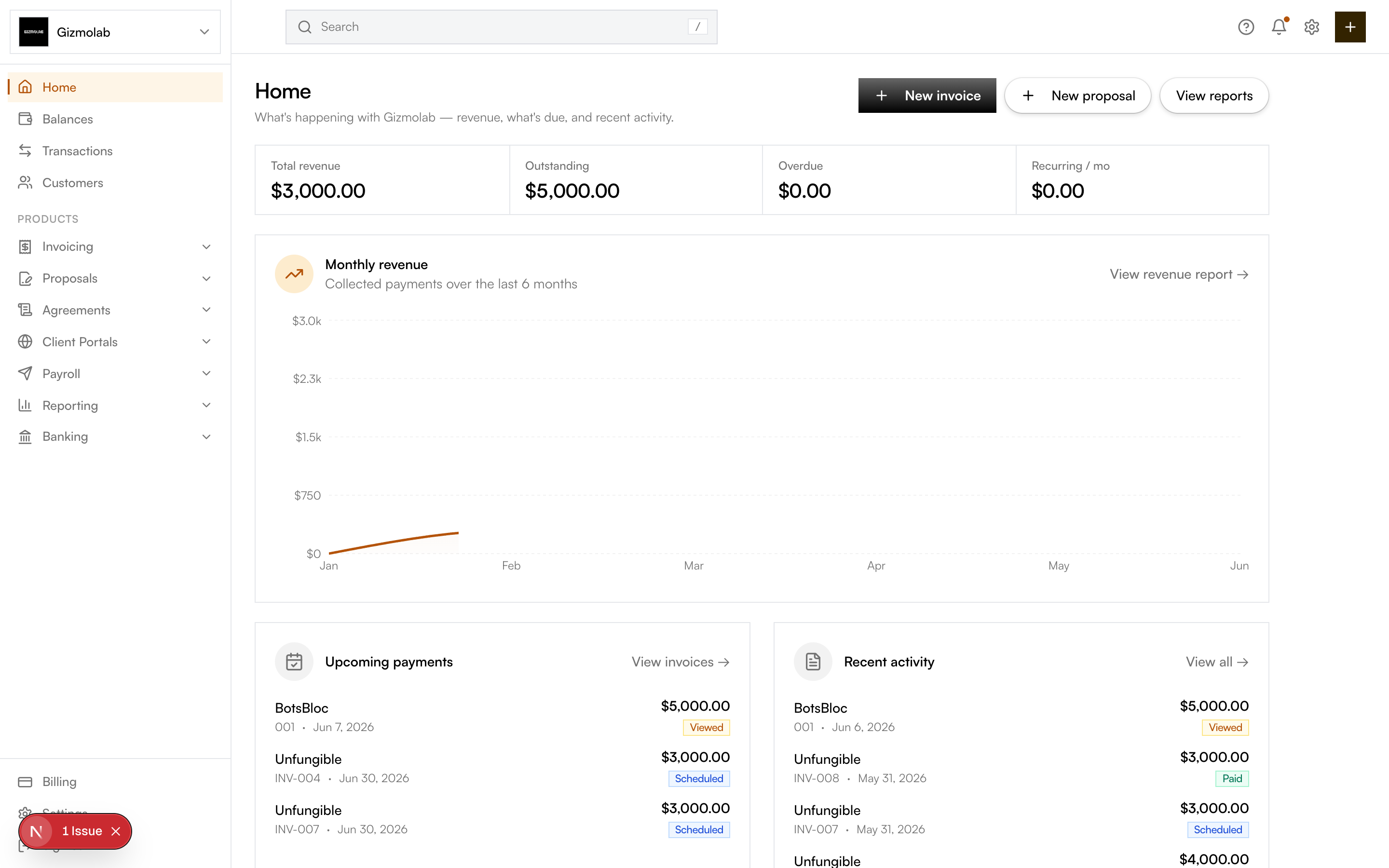
- 4Your org home after onboarding
Choose an account type#
The first step is Individual or Business. This decides which questionnaire you get and what features are available — you can change it later in settings.
- Individual — For freelancers and solo work. Questions cover what you do, your niche, where your clients are, how you get paid, what you will use Hanko for, and your preferred currency.
- Business — For companies. Questions cover your industry, team size, who you serve, where your clients are, how you get paid, your role, and expected monthly invoicing volume.
The questionnaire#
After the account-type step, Hanko walks you through the matching set of questions one at a time:
- Each step shows your progress and saves on its own as you answer.
- Use Back to revisit a step, or Skip to move past any question you would rather not answer.
- The flow resumes at the first unanswered step, so you never lose progress.
Note
Steps marked optional in the flow (such as wallets and fiat setup) can be completed later from settings — you do not have to finish everything before using the app.
Finish setup later#
If you skip ahead, a Finish setup resume pill appears (shown in the corner above) with the number of steps left. Click it anytime to return to the remaining questions; it disappears once onboarding is complete.
After onboarding#
You land on your org's Home dashboard, where you can open Invoicing, Proposals, Agreements, Client Portals, Payroll, Reporting, and Banking from the sidebar. For fiat and Flex Routes, complete Bridge.xyz verification in Settings → Fiat.
Tip
Use the org switcher in the sidebar to change the active organization. Each org has its own invoices, contacts, payouts, billing, and settings.