Organization Settings#
Manage your organization's profile from Settings → Organization Details. The settings home also links out to Billing, Fiat, Bank accounts, Wallets, Invoicing, Notifications, and Team.
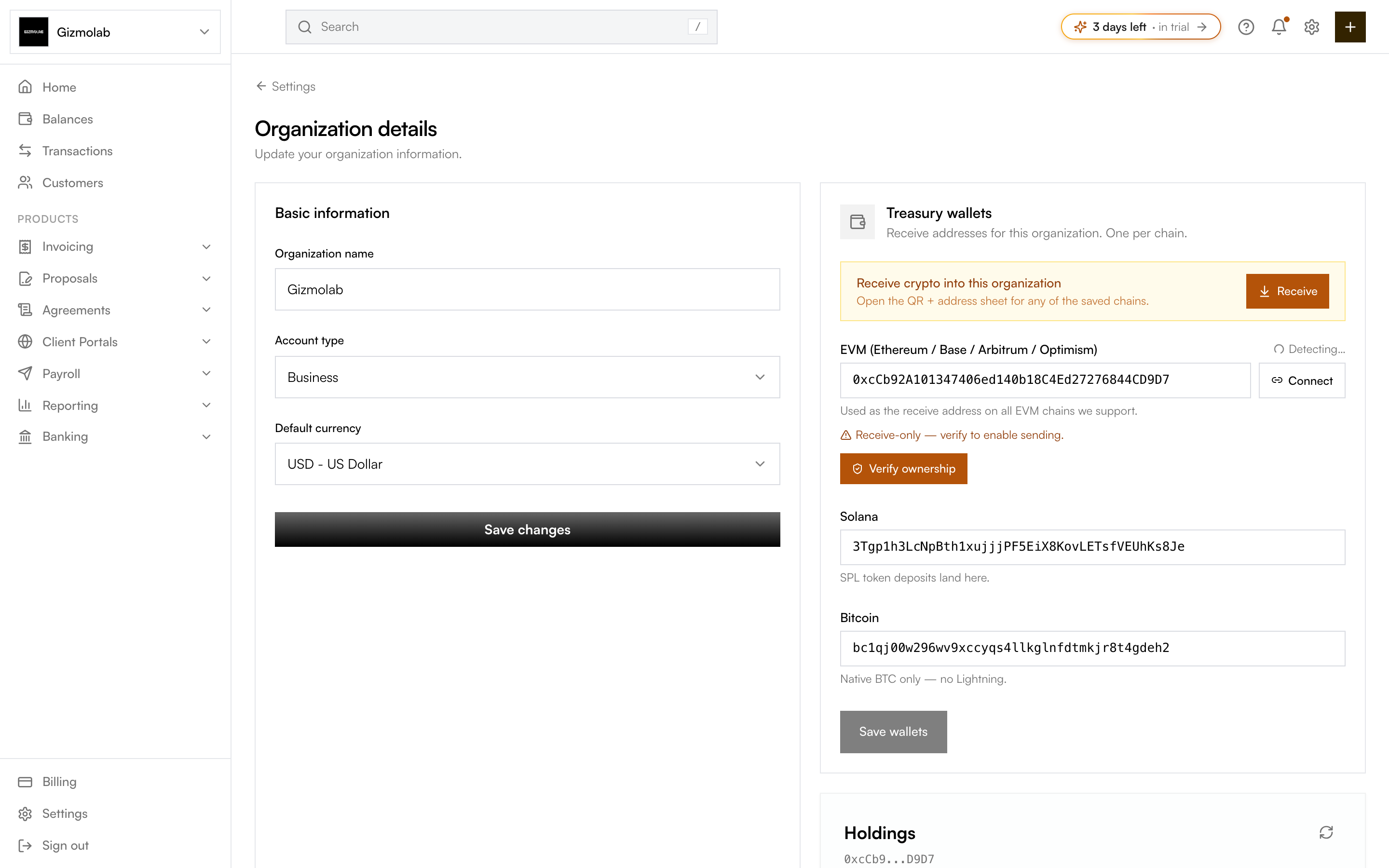
- 1Organization name
- 2Account type Individual or Business
- 3Save changes
- 4Treasury wallets one per chain
- 5Verify ownership to enable sending
Basic information#
- Organization name — The display name shown in the sidebar, on invoices, and in the org switcher.
- Account type — Individual or Business. Business unlocks team management. You can only switch back to Individual when you are the sole member; remove other members in Settings → Team first.
- Default currency — USD, EUR, or GBP. Used as the default for new invoices and amounts.
Click Save changes after editing. Updates apply immediately across the app.
Note
Only owners and admins can edit these fields. Members see the details in read-only mode.
Treasury wallets#
The right column shows your organization's treasury wallets — one receive address per chain (EVM, Solana, Bitcoin). These are the addresses payers send crypto to and the source for balance display. Use Receive to open the QR and address sheet. See Wallets for the full editor and ownership verification.
Deleting an organization#
Owners and admins see a Danger zone with Delete organization. You will be asked to confirm. Deletion is permanent: all data for that org (invoices, contacts, payouts, settings) is removed.
Warning
Before deleting, export any data you need (see Exporting). Deletion cannot be undone.
Multiple organizations#
If you have more than one organization, use the org switcher at the top of the sidebar to change the active org. Each org has its own settings; changing one does not affect the others.