Client Portal#
The client portal gives a contact a private, branded page where they can see everything you share — invoices, proposals, agreements, and files — and pay online. Each portal is unique to one contact and opens with a secure link, so they don’t need a Hanko account.
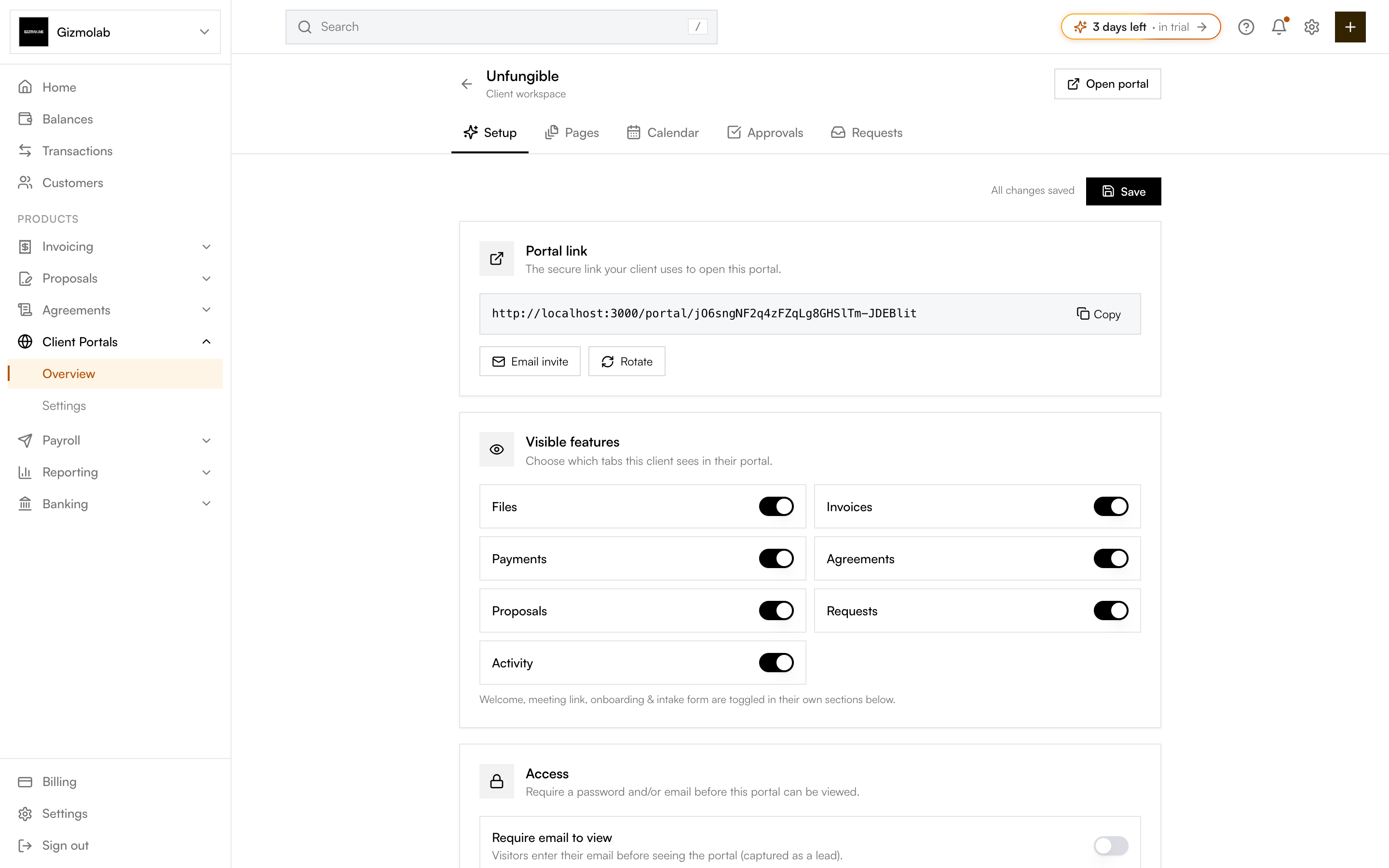
- 1Secure link the client opens
- 2Open the live portal
- 3Choose which sections show
Setting up a portal#
You can manage a contact’s portal from Client Portals in the sidebar. For a contact that isn’t set up yet, Create link generates the secure URL; then Email sends it to the contact (they must have an email on file), or Copy it to share it yourself. For full setup options see Client Portals Overview and Customizing a portal.
How contacts access the portal#
Contacts open the unique link you share. The link is the credential — no password unless you add one under Access. You can Rotate the link at any time to invalidate the old one.
What they see#
A contact sees only their own records. Which sections appear is set per portal, and may include:
- Invoices — Full invoice content with line items, totals, and tax, plus a button to pay.
- Proposals — Review and accept proposals you’ve sent.
- Agreements — Review and sign agreements.
- Shared files — Download documents you’ve shared.
You can also add a welcome message, a meeting/booking link, onboarding steps, and an intake form.
Paying from the portal#
When a contact pays an invoice they’re taken to the same hosted payment experience as the invoice email. They can pay by:
- Fiat — Following bank transfer instructions.
- Crypto — Using the displayed wallet address or QR code.
Status updates (e.g. to Paid) once the system records the payment.
Note
Contacts do not need a Hanko account. They only need the portal link and, for crypto, a compatible wallet.