Payment Options#
A Hanko invoice can offer several payment methods at once. The customer picks one on the hosted page. Set these in the Payment options section of the invoice builder.
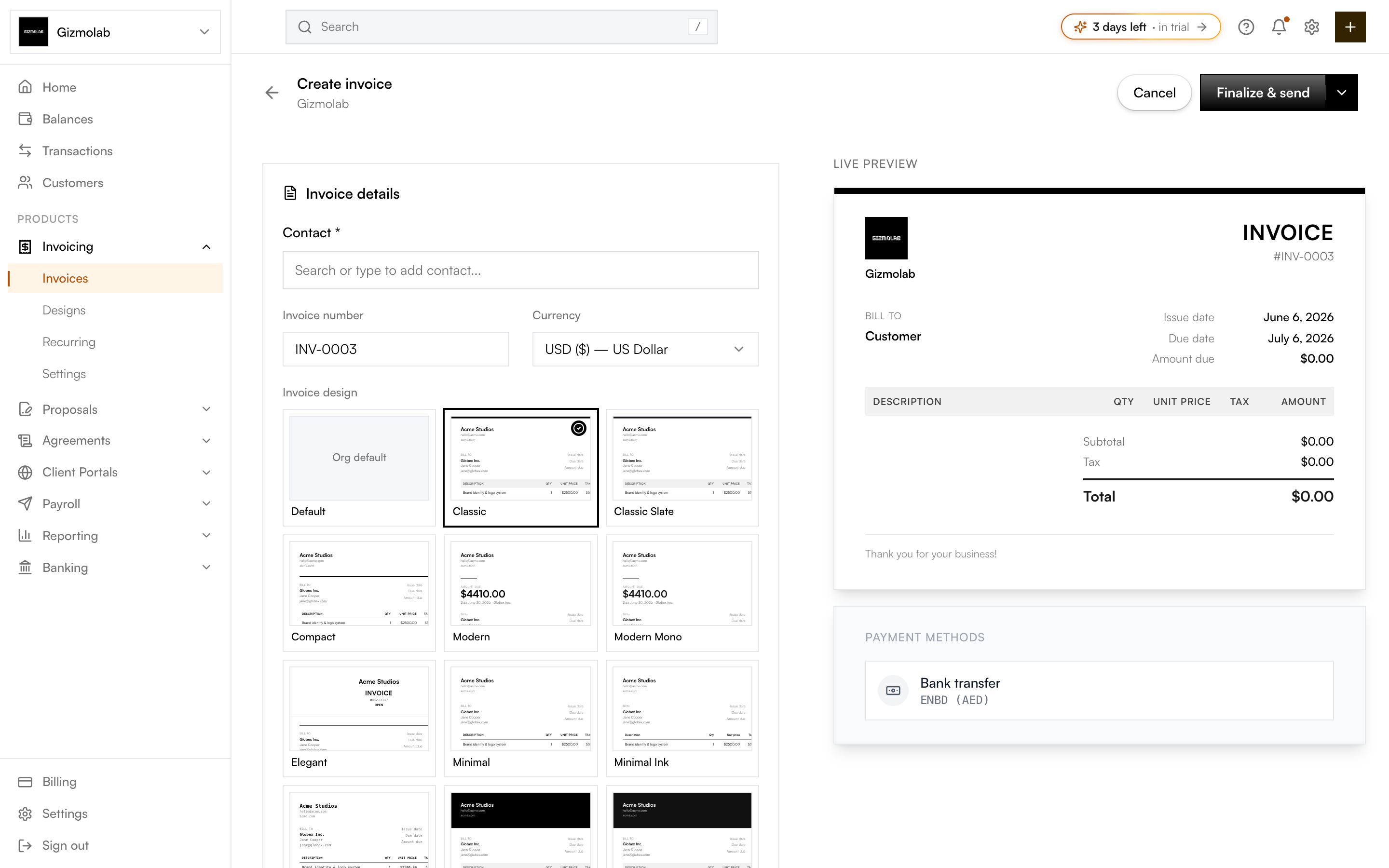
- 1Methods offered on this invoice
- 2A bank transfer option
- 3Save to publish the invoice
Available methods#
- Crypto — Choose a chain and token. The receiving address defaults to your org wallet for that chain; you can override it per method. Add multiple chains to give crypto payers a choice.
- Bank account — Offer one or more of your saved bank accounts (shown with their currency).
- Fiat route — A Flex Route powered by Bridge.xyz (a fiat virtual account or a crypto liquidation address). The customer pays fiat or crypto and you receive crypto.
Mixing methods#
Use the Add crypto, Add bank account, and Add fiat route buttons to stack as many options as you like — for example, USDC on two chains plus a USD bank account. Each appears as a card you can edit or remove.
Tip
If your org has a default bank account, it's pre-added as a starting method. You can add crypto and routes on top, or remove it.
Warning
If you add a crypto method on a chain with no org wallet, enter a receiving address for it — otherwise that method has nowhere to send funds.
Flex Routes#
Flex Routes let customers pay in fiat or crypto while you receive crypto (e.g. USDC). They require Bridge.xyz setup in Settings → Fiat (verification, virtual accounts, liquidation addresses). Once configured, your routes appear under Add fiat route.
What the customer sees#
The hosted invoice page and the PDF list every method you offered. The customer chooses how to pay; you receive funds at the matching wallet, bank account, or route.